Your cart is currently empty.
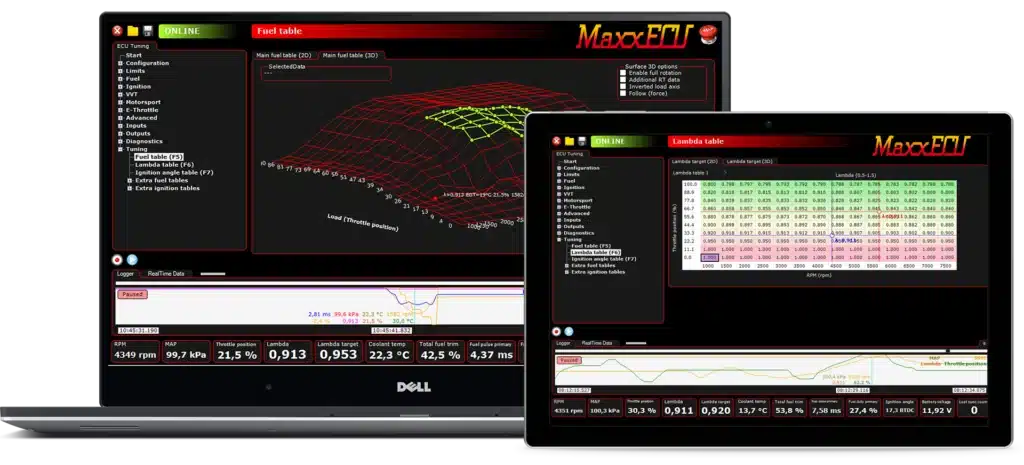
There’s a couple of main settings that need to be adjusted to suit your ITB’s, so we’re going to go through some of them now.
- Fueling
Navigate to -> Fuel -> Fuel General
Here, you will find a setting called “Use Map Sensor”. We want to Disable this, as we will be setting up the ECU using a fuel strategy known as Alpha-N.
This means we will be referencing the volumetric efficiency of the engine with respect to the throttle position and rpm. (Where throttle position is considered the load axis)

2. Changing Load Axis on Fuel, Ignition & Target Lambda Tables.
So, now that we’ve disabled use Map Sensor, we’re going to want to change the main load axis on the main tables. Simply navigate to Tuning -> Fuel / Lambda / Ignition Tables
Simply right click on the table axis where it says MAP, and look for a button that says “Change Axis Source”, once you’ve found that, search and click Throttle Position and select OK.
It’ll ask you to rescale the axis, you want to change the min and max values to 0% and 100% respectively, and as a base, the cell division as 11.
Now the load axis will range from 0-100%. However, you’ll find that with ITB’s, very small throttle position movements can lead to huge airflow changes. This makes it hard to respond lowdown. So, you’ll now want to manually add some more breakpoints between 0% and 10%. For example, you may want to do, 0% throttle, 2%, 3%, 5%, 10% on the fuel table.


Note: You can manually change axis value by double clicking.
3. You’re done! It’s as simple as that.
Need help with this setup?
Browse matching components, contact the team, or continue through related support guides.


